How to choose the right laptop stand
A complete buying guide from KOS Ergonomics. Learn which features matter, how to match a stand to your laptop and the way you work, and why a stand is only half the fix, so you can work on a laptop without neck, shoulder or wrist strain.
- ~11° more neck flexion when using a laptop than a desktop computer, in a lab study1
- 12° incline that reduced neck flexion but increased wrist extension without a separate keyboard2
- 50% of work-related illness in Ireland was musculoskeletal (2002–2013)3
- 14 laptop stands in the KOS range, for desks, travel and hot desking
Laptops were designed to be portable, not ergonomic. Because the screen and keyboard are joined, you can never get both at the right height at once: set the keyboard right and the screen is too low, raise the screen and the keyboard is too high. A laptop stand solves half of that problem, and an external keyboard and mouse solve the other half.
The right stand depends on three things: where you use your laptop, how long you use it for, and the laptop itself. Use the table below as a starting point, then read on for the detail.
Laptop stands at a glance
| How you work | Stand type | Look for | Examples from KOS |
|---|---|---|---|
| Occasional laptop use at a desk | Simple riser | Stable platform that lifts the screen, small footprint | KOS Notebook Stand KO11PL, KOS KO330 |
| Full days on a laptop at a desk | Adjustable desk stand | Height and tilt adjustment, stability, room for a keyboard in front | Ergo Adapt, Ergo Q |
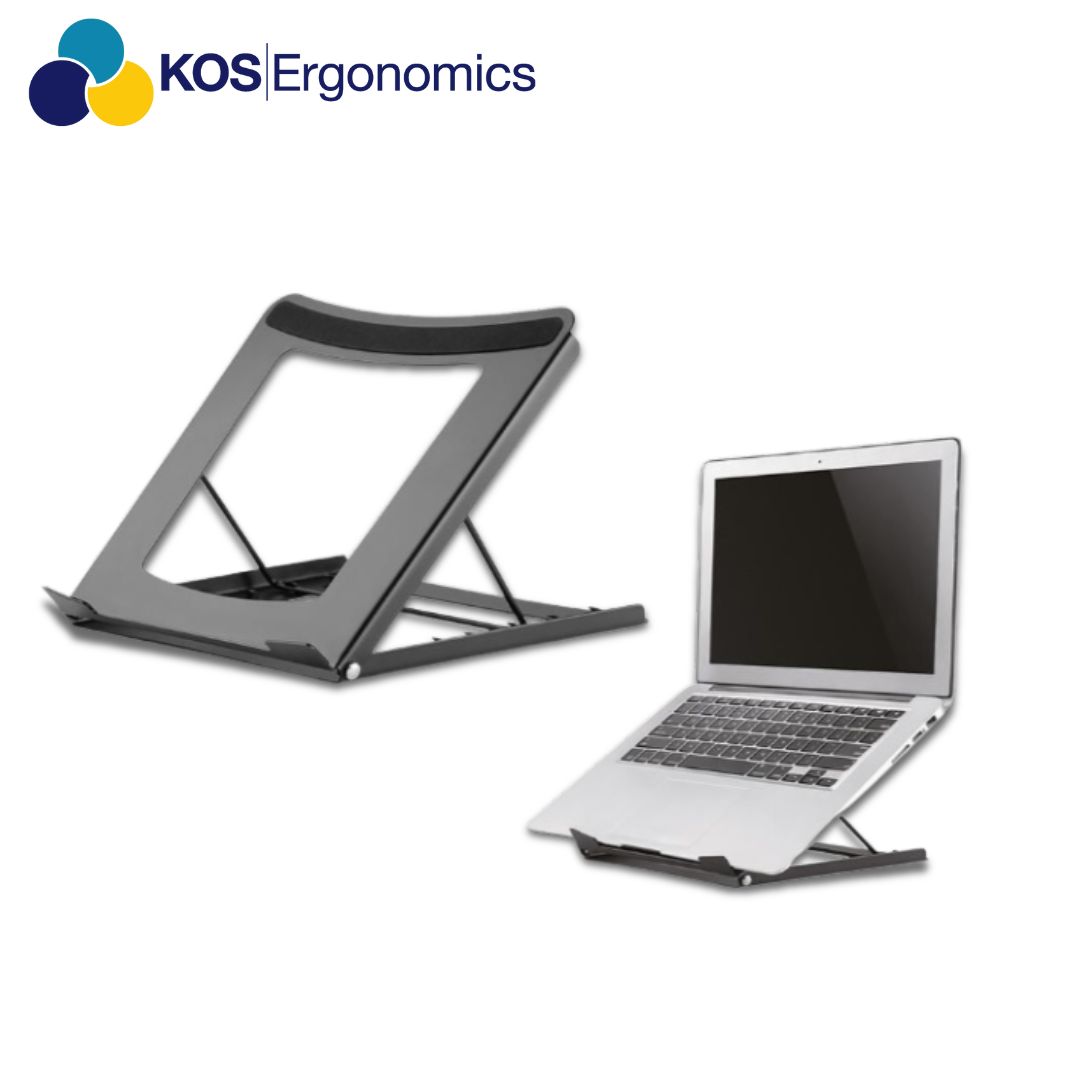
| Hybrid work and travel | Foldable portable stand | Lightweight, folds into a bag, several tilt positions | Ergo Steel, Ergo P |
| Hot desking | Portable laptop kit | Everything you need to set up quickly at any desk | Bento Hotdesk Laptop ToolKit |
| Laptops that don't open fully, or Surface devices | Specialist stand | A stand designed around your device's hinge or form | Laptop Stand K541, Surface Pro stand |
| Sitting and standing at a fixed desk | Laptop stand and stand-up converter | Raises the laptop for both sitting and standing | MouseTrapper StandFriend |
Start with how you work
Using a laptop flat on a desk makes you look down. In one lab study, working on a laptop meant around 11 degrees more neck flexion and more shoulder elevation than working on a desktop computer.1 How much that matters depends on how long you spend on the laptop, so start there.
Questions to ask yourself
- How many hours a day do you use your laptop? A quick email check is very different from a full working day on a laptop with no second screen.
- Where do you use it? A stand that lives on one desk can be heavier and sturdier. One that travels needs to fold small and weigh little.
- Do you have an external keyboard and mouse? If not, budget for them. Raising the laptop without them just moves the strain from your neck to your shoulders and wrists.
- What laptop do you use? Screen size, weight and how far the screen opens all affect which stand will work.
- Could a monitor be better? If you work at the same desk every day, an external monitor may suit you better than a laptop stand.
Think of a laptop stand as turning your laptop into a monitor. Once the screen is raised, you type and point with separate devices, just as you would at a desktop computer.
The 8 features that matter
A laptop stand is only as good as the position it puts your screen in. These are the features our consultants check first, and the ones to look for on any product page.
- 1Height range
- 2Tilt angle
- 3Stability
- 4Laptop size and weight
- 5Screen opening angle
- 6Ventilation
- 7Portability
- 8Space for keyboard and mouse
1Height range
The stand should lift the top of the screen to about eye level. Taller users need a higher maximum, while people who wear bifocals often prefer the screen a little lower.
Check: sitting upright, your eyes are level with or just above the top of the screen.
2Tilt angle
Tilt lets you angle the laptop so the screen faces you and reflections from windows and lights are reduced. Several set positions make it easier to find the right one.
Check: you can angle the laptop without it sliding forward.
3Stability
A good stand doesn't wobble when you touch the screen or bump the desk. Wide feet, a rigid frame and grip pads that hold the laptop in place all help.
Check: the screen stays steady when you tap it or type nearby.
4Laptop size and weight
Check the screen sizes the stand is designed for, and that it will carry your laptop's weight at full height. A small stand under a large laptop is unstable.
Check: your laptop sits fully on the stand, with no overhang at the sides.
5Screen opening angle
Tilting a laptop back on a stand means the screen has to open further to stand upright. Laptops with a limited hinge need a stand designed for them, such as the K541, which suits laptops opening to between 120 and 130 degrees.
Check: on the stand, your screen can still open to face you squarely.
6Ventilation
Laptops need airflow underneath to stay cool. Open-frame and mesh designs leave the vents clear, while a solid platform can trap heat.
Check: the vents on your laptop aren't covered when it sits on the stand.
7Portability
If you move between home, office and client sites, a stand that folds flat and fits in your laptop bag is far more likely to get used.
Check: it folds small enough to carry every day, and sets up in seconds.
8Space for keyboard and mouse
The stand should sit far enough back that there's room in front for an external keyboard and mouse, with space to rest your hands and arms.
Check: the screen is about an arm's length away, with the keyboard directly in front of you.
Fitting your body and laptop
The right stand depends on your height, your eyesight and the laptop itself. Use the table below to check your situation before you buy.
| If you | Common problem | What to look for | Explore |
|---|---|---|---|
| Are taller | A fixed or low stand still leaves the screen below eye level | A stand with a high maximum height, or an external monitor | Talk to a consultant |
| Wear bifocals or varifocals | A screen at eye level makes you tilt your head back to read | Height adjustment so the screen can sit a little lower | Ergo Adapt |
| Have a laptop that doesn't open fully | On a tilted stand, the screen leans back away from you | A stand designed for restricted hinges | Laptop Stand K541 |
| Use a Microsoft Surface Pro | General stands don't suit the kickstand and detachable keyboard | A stand made for the Surface Pro | Surface Pro stand |
| Work at different desks | Each desk is set up differently, so you end up hunched over the laptop | A lightweight folding stand or a complete hot desk kit | Bento Hotdesk Laptop ToolKit |
Always pair a laptop stand with an external keyboard and mouse. For help choosing them, see our guides to ergonomic keyboards and ergonomic mice.
Laptop stand types explained
Laptop stands range from simple fixed risers to height-adjustable stands that work for sitting and standing. It's worth understanding the options before you choose.
| Type | How it works | Best for |
|---|---|---|
| Fixed riser | Lifts the laptop to one set height | Occasional use, or where one height suits everyone |
| Adjustable desk stand | Height and tilt adjust to suit the user | Daily laptop use and desks shared by different people |
| Foldable portable stand | Folds flat and packs into a laptop bag | Hybrid workers, travel and client visits |
| Monitor and laptop platform | A raised shelf that holds either a laptop or a monitor | Desks that switch between a laptop and a screen |
| Laptop stand and stand-up converter | Raises the laptop high enough to work standing as well as sitting | Laptop users who want to alternate sitting and standing at a fixed desk |
Whichever type you choose, it needs to be combined with an external keyboard and mouse. In one study, tilting a laptop up at 12 degrees reduced neck flexion but increased wrist extension when people kept typing on the built-in keyboard, while a riser used with an external keyboard and mouse avoided that trade-off.2 If you work standing for part of the day, see our sit-stand desk converter guide.
Specialist laptop solutions
Beyond standard laptop stands, KOS offers solutions for travel, hot desking and specific devices. If one of these describes your situation, start here.
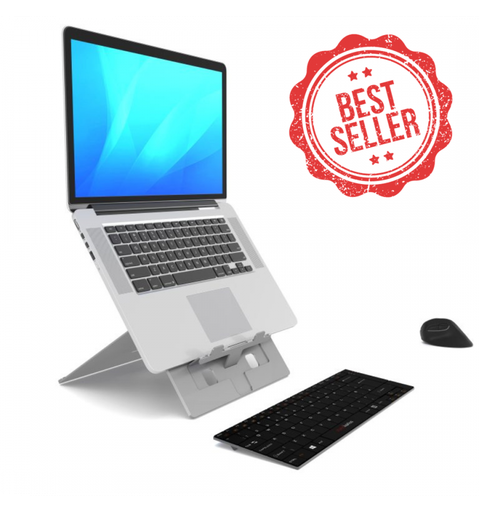
Adjustable desk stands
For everyday laptop work at the same desk, an adjustable stand lets you set the screen height and angle precisely. The Ergo Adapt is our bestselling laptop stand, alongside the Ergo Q and the AllGood Adjustable Laptop Stand.
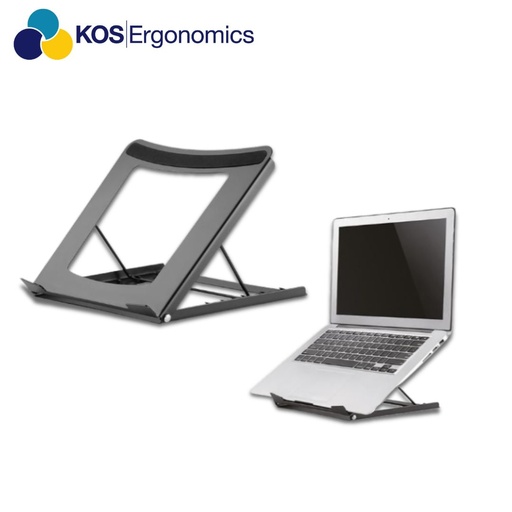
Portable and foldable stands
The Ergo Steel is a steel stand that folds to fit in a bag, suits 10 to 15 inch laptops and tablets, and has five tilt positions from 10 to 60 degrees. The Ergo P folds away neatly when not in use and supports laptops up to 17 inches.
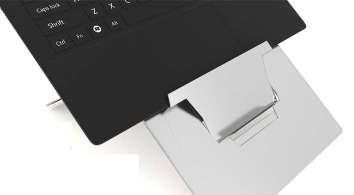
Device-specific stands
Some devices need a stand designed around them. The K541 is made for laptops whose screens only open to between 120 and 130 degrees and includes an in-line document holder. Dedicated stands are also available for the Microsoft Surface Pro.
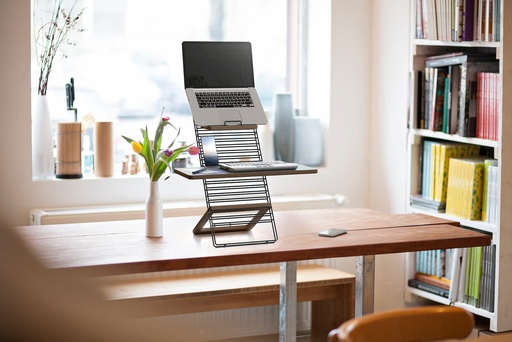
Hot desk kits and sit-stand stands
The Bento Hotdesk Laptop ToolKit is a portable kit for people who move between desks. For sitting and standing at a fixed desk, the MouseTrapper StandFriend works as both a laptop stand and a stand-up converter.
Popular laptop stands in our range
Ergo Adapt
Our bestselling ergonomic laptop stand.
View stand
Ergo Steel
Foldable steel stand with five tilt positions.
View stand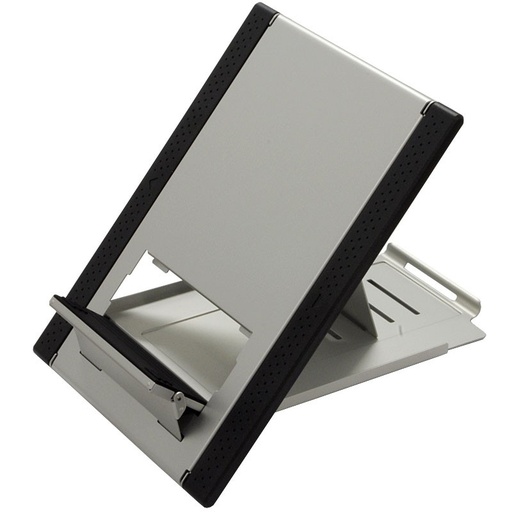
Ergo P
Folds away neatly and supports laptops up to 17 inches.
View stand
Laptop Stand K541
For laptops that open to 120–130°, with a document holder.
View stand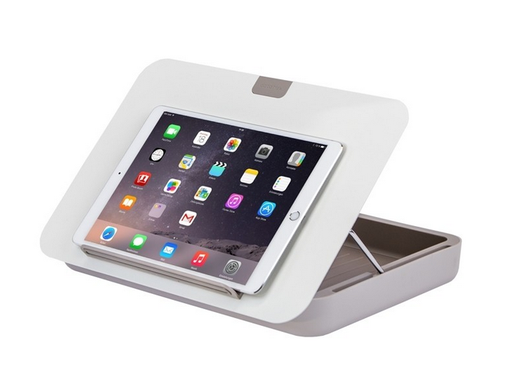
Bento Hotdesk ToolKit
A portable laptop kit for people who move between desks.
View kit
MouseTrapper StandFriend
Laptop stand and stand-up converter in one.
View standMaterials, build and portability
Materials
- Aluminium and steel frames are strong and rigid for their weight, and resist wobble at full height.
- Open-frame designs leave the underside of the laptop exposed so air can circulate around the vents.
- Non-slip pads hold the laptop in place and protect it from scratches.
Build quality
Look at the hinges and adjustment locks as closely as the frame. A durable stand holds its height and angle without slipping, folds and unfolds smoothly after months of use, and has no sharp edges that could mark your laptop or bag.
Heat and cooling
Raising a laptop off the desk generally helps airflow. If your laptop runs hot during heavy work, a stand designed for cooling, such as the AllGood Laptop Cooling Stand, may help.
What Irish DSE regulations require
If you're buying for employees, laptop setups are part of your legal duties. Chapter 5 of Part 2 of the Safety, Health and Welfare at Work (General Application) Regulations 2007 covers display screen equipment, including workstation assessments by a competent person.5 Portable systems that aren't in prolonged use at a workstation are excluded, but a laptop used for long periods at a desk should meet the same minimum requirements as any other workstation:6
DSE requirements that affect laptop use
- The screen swivels and tilts easily to suit the user
- The keyboard is separate from the screen, which for a laptop means an external keyboard
- There is enough space in front of the keyboard to support the hands and arms
- The work surface allows a flexible arrangement of the screen, keyboard, documents and related equipment
These are minimums. For employees who work mainly on laptops, including hybrid and home workers, a DSE assessment identifies whether a stand, external keyboard and mouse, or a full monitor setup is needed. Remote workers can be assessed by video through a remote DSE assessment.
How to set up your laptop
Even the best stand won't help if it isn't set up properly. Work through these steps in order.
-
Set up your chair first Adjust your chair so your feet are supported and your elbows are roughly level with the desk. See our chair buying guide for the full setup.
-
Place the stand at arm's length Put the stand directly in front of you, about an arm's length away, leaving room in front for the keyboard.
-
Set the screen height Raise the stand until the top of the screen is at or just below eye level, so you look slightly down at the middle of the screen.4
-
Angle the screen Tilt the laptop and screen so the display faces you and reflections from windows and lights are minimised.
-
Connect a keyboard and mouse Place an external keyboard and mouse at elbow height, directly in front of you, so your shoulders stay relaxed.
-
Repeat it everywhere If you work in more than one place, carry your stand, keyboard and mouse and set them up the same way each time.
See our step-by-step guide: Set up your office workstation in 6 minutes.
Common laptop stand mistakes
Using the built-in keyboard on a stand trades neck strain for wrist and shoulder strain.2 Add an external keyboard and mouse.
If you have to tilt your head back to read, lower the stand until the top of the screen is at eye level.
A stand that shakes every time you touch the screen soon gets left in a drawer.
A solid platform can trap heat. Choose an open design if your laptop runs warm.
If your laptop doesn't open far, a tilted stand leaves the screen leaning away from you.
No stand fixes a laptop on your knees. For long sessions, work at a desk with your full setup.
Get your laptop setup right
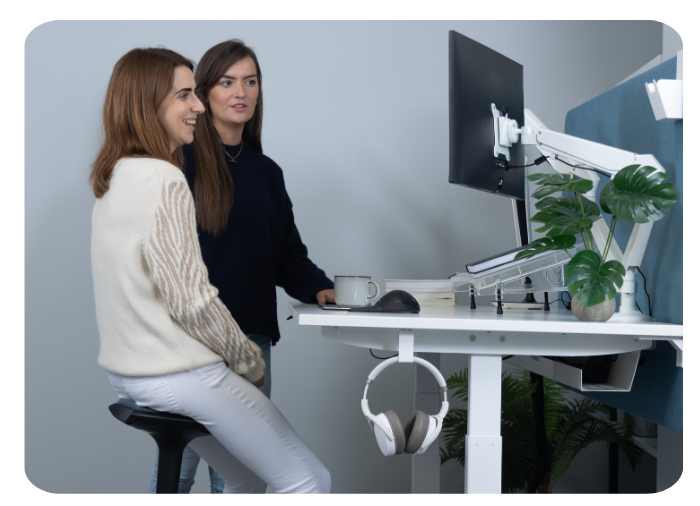
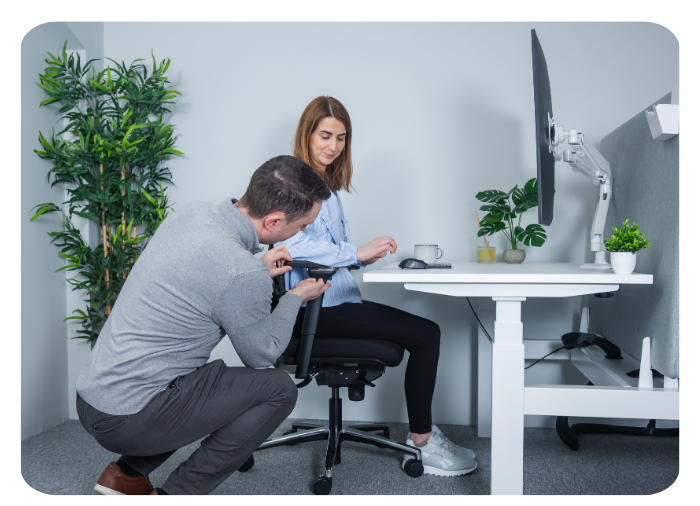
Reading about laptop setups only goes so far. A KOS consultant can look at how and where you work, and recommend a stand, keyboard and mouse that work together, whether you're at home, in the office or both.
Frequently asked questions
Do I need an external keyboard with a laptop stand?
Yes. Raising a laptop brings the screen up to a better height, but it also raises the built-in keyboard, which strains the wrists and shoulders. An external keyboard and mouse let you type and point comfortably while the screen stays at eye level.
How high should my laptop screen be?
The top of the screen should be at or just below eye level, about an arm's length away, so you look slightly down at the middle of the screen. If you wear bifocals or varifocals, you may prefer it a little lower.
Can a laptop stand help my laptop stay cool?
Raising a laptop off the desk generally improves airflow, especially with an open-frame stand that leaves the vents clear. If your laptop runs hot during heavy work, a stand designed for cooling may help further.
What is the best laptop stand for travel?
Choose a lightweight stand that folds flat, fits in your laptop bag and sets up in seconds, with enough height and tilt adjustment to raise the screen properly. Pack a compact keyboard and mouse with it.
Do Irish employers have to provide laptop stands?
The Safety, Health and Welfare at Work (General Application) Regulations 2007 don't name laptop stands specifically. They do require an adjustable screen and a keyboard separate from the screen for display screen work, so employees who use laptops for prolonged periods usually need a stand with an external keyboard and mouse, or a monitor. A DSE assessment identifies what each person needs.
Can I get advice before I buy?
Yes. Book a free appointment at our Dublin or Tipperary showroom to speak with a consultant, add a 1-on-1 ergonomic consultation, or book a remote video consultation if you can't travel.
Sources
- Differences in posture kinematics between using a tablet, a laptop, and a desktop computer in sitting and in standing (2018). pubmed.ncbi.nlm.nih.gov/30373975
- Asundi et al., Changes in posture through the use of simple inclines with notebook computers placed on a standard desk, Applied Ergonomics (2011). sciencedirect.com
- Russell, Maître and Watson, Work-related Musculoskeletal Disorders and Stress, Anxiety and Depression in Ireland, ESRI/HSA (2016). esri.ie/pubs/RS53.pdf
- Canadian Centre for Occupational Health and Safety, Office Ergonomics: Sit/Stand Desk. ccohs.ca
- S.I. No. 299/2007, Safety, Health and Welfare at Work (General Application) Regulations 2007. irishstatutebook.ie/eli/2007/si/299
- Minimum requirements for display screen equipment, Schedule 4, S.I. No. 299/2007. irishstatutebook.ie

 and then Add to Home Screen.