How to choose the right ergonomic mouse
A complete buying guide from KOS Ergonomics. Learn which features matter, how to match a mouse to your hand and the way you work, and when a vertical mouse or central pointing device makes more sense, so you can work without wrist, forearm or shoulder strain.
- 50% of work-related illness in Ireland was musculoskeletal (2002–2013)4
- 28° vs 42° forearm rotation with a vertical mouse versus a standard mouse in a lab study1
- 17 controlled trials of alternative mouse designs assessed in a systematic review2
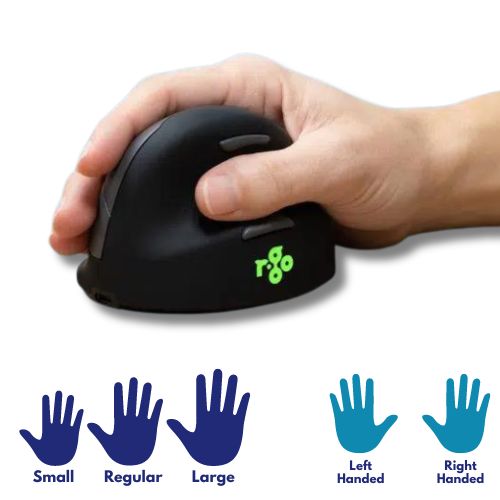
- 3 sizes of the KOS MicroBreak vertical mouse, plus a left-handed version
Your mouse is the tool you use most at your desk, often thousands of times a day. A good one fits your hand, keeps your forearm and wrist in a relaxed position and sits within easy reach. A poor one makes you twist, grip and stretch, and over time that shows up as pain in the hand, wrist, forearm, shoulder or neck.
The right mouse depends on three things: the size and shape of your hand, how much you use it, and where you feel discomfort. Use the table below as a starting point, then read on for the detail.
Ergonomic mice at a glance
| How you work | Mouse type | Look for | Examples from KOS |
|---|---|---|---|
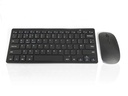
| Light daily use, no discomfort | Well-shaped standard mouse | Fits your hand, light clicks, wireless | KOS Wireless High Precision Mouse |
| Full days at a screen | Vertical mouse | Handshake grip, correct size, thumb and little finger support | KOS Vertical Mouse, KOS MicroBreak |
| Wrist or forearm discomfort | Size-matched vertical or pen-grip mouse | Neutral forearm position, the right size, break reminders | KOS MicroBreak, WOW Pen Mouse |
| Shoulder or neck pain, heavy mouse use | Central pointing device | Sits in front of the keyboard, roller bar, usable with either hand | Mousetrapper Delta, Mousetrapper Prime |
| Left-handed or switching hands | Left-handed or ambidextrous mouse | A true left-hand version or a symmetrical design | KOS Twist, KOS MicroBreak Left-Handed |
Start with how you work
A standard flat mouse turns your forearm palm-down, and most people then grip it more tightly and reach further for it than they realise. Ergonomic mice tackle these problems in different ways, so the right choice depends on your hand and your day, not just on the mouse.
Questions to ask yourself
- How much of your day involves the mouse? Occasional clicking between typing is very different from hours of design, data or CAD work.
- What tasks do you do? Fine, precise work favours a precise sensor and a grip you can control. Scrolling, dragging and repetitive clicking favour programmable buttons and a relaxed grip.
- Where do you feel discomfort? Wrist and forearm discomfort points toward the grip angle. Shoulder and neck discomfort often points toward reach and mouse position.
- Which hand do you use? Most ergonomic mice are made for one hand. Left-handed users, and anyone who wants to share the load between hands, need to check.
- Where do you work? Hot desks, laptops and travel all influence whether you need Bluetooth, a USB receiver or something compact.
Give a new ergonomic mouse at least a week or two. In lab testing, users were slower to hit targets with a vertical mouse at first, and the researchers noted that training and familiarisation were needed.1 Most people settle in quickly once the new grip feels normal.
The 8 features that matter
An ergonomic mouse is only as good as its fit. These are the features our consultants check first, and the ones to look for on any product page.
- 1Grip angle
- 2Size and fit
- 3Buttons and click force
- 4Thumb and finger support
- 5Scroll wheel and extra buttons
- 6Tracking speed (DPI)
- 7Connectivity and battery
- 8Handedness
1Grip angle
A flat mouse rotates your forearm palm-down. Vertical and slanted mice reduce that rotation. In one lab study, a vertical mouse reduced forearm rotation and wrist extensor muscle activity compared with a standard mouse.1 A slanted mouse is a middle ground if fully vertical feels unfamiliar.
Check: your hand rests in a relaxed handshake position with no twisting.
2Size and fit
A mouse that's too small makes you claw and squeeze it. One that's too large makes you stretch. Many ergonomic mice come in sizes matched to hand length, so measure before you buy.
Check: your whole hand is supported and your fingertips rest on the buttons without stretching.
3Buttons and click force
Clicks should need a light touch without being so sensitive that you trigger them by accident. Heavy clicks add up to a lot of finger effort over a day, and quiet clicks suit shared offices.
Check: you can click without lifting your finger high or pressing hard.
4Thumb and finger support
A shaped thumb rest lets the thumb relax instead of pinching. A lip or ledge along the base stops the little finger dragging on the desk, which otherwise makes you grip harder.
Check: your thumb rests comfortably and your little finger doesn't rub the desk.
5Scroll wheel and extra buttons
The scroll wheel should be easy to reach without stretching the index finger. Programmable buttons for tasks like back, copy or double-click cut down repetitive clicking.
Check: you can scroll and use the side buttons without shifting your grip.
6Tracking speed (DPI)
Adjustable tracking speed lets you cover the screen with smaller hand movements, which matters on large or dual monitors. Set it too fast, though, and you lose precision and grip harder to compensate.
Check: you can reach the edge of the screen without repeatedly lifting and repositioning the mouse.
7Connectivity and battery
Wireless mice remove cable drag and free up desk space. Bluetooth saves a USB port on laptops, while a USB receiver is often simpler on desktops. Rechargeable batteries avoid mid-task battery swaps.
Check: the connection suits your computer and the battery lasts your working week.
8Handedness
Most vertical mice are shaped for one hand, so left-handed users need a dedicated left-hand version or a truly ambidextrous design. Some people alternate hands to share the load.
Check: the mouse is made for the hand you'll actually use it with.
Fitting your hand
Hand size affects how you grip a mouse and how hard your muscles work.3 To find your size, measure the length of your hand from the crease of your wrist to the tip of your middle finger, then use the table below.
| If your hand is | Common problem with standard mice | What to look for | Explore |
|---|---|---|---|
| Small (under 165 mm) | Mouse too tall or long, so you grip with your fingertips and overreach for buttons | A small-sized vertical mouse with buttons within easy reach | KOS MicroBreak (Small) |
| Medium (165–185 mm) | Usually fits standard ergonomic mice, but the grip angle still matters | A regular-sized vertical mouse with thumb support | KOS Vertical Mouse |
| Large (over 185 mm) | Hand overhangs the mouse and the little finger drags on the desk | A large-sized mouse with a supportive base ledge | KOS MicroBreak (Large) |
| Left-handed | Right-handed shapes force an awkward, twisted grip | A dedicated left-hand version or an ambidextrous design | KOS Twist |
| Sore when gripping | Holding any handheld mouse aggravates the thumb or fingers | A device you don't need to grip, controlled by the fingers of either hand | Central pointing devices |
A vertical mouse that's too small or too large can leave you squeezing or stretching just as much as a standard mouse. Where a mouse comes in sizes, match it to your hand length rather than guessing.
Mouse types explained
Ergonomic mice change either the angle of your hand, the way you grip, or where the pointing device sits. Each suits different problems, so it's worth understanding the options.
| Type | How you use it | Best for |
|---|---|---|
| Standard flat mouse | Palm faces down, forearm fully rotated | Light or occasional use, when it fits your hand |
| Slanted mouse | Hand tilted partly toward a handshake position | A gentle step toward a vertical grip |
| Vertical mouse | Hand held upright in a handshake position, buttons pressed with the same fingers as usual | Full days of mouse work and wrist or forearm discomfort |
| Pen-grip mouse | Held like a pen, with the hand upright and movement coming from the fingers | Precise work and people who find a pen grip natural |
| Central pointing device | Sits in front of the keyboard; you move the cursor with a roller bar using fingers or thumbs of either hand | Shoulder and neck discomfort, heavy mouse use and sharing the load between both hands |
For most people working full days, a correctly sized vertical mouse is a strong default. A systematic review of controlled trials found some evidence that alternative mouse designs reduce discomfort, especially when combined with training. Several studies it covered found roller-bar devices reduced muscle activity compared with a conventional mouse, although one found users struggled more with a roller-style design.2 If shoulder or neck discomfort is your main problem, a central pointing device is worth trying in person.
Specialist pointing devices
Beyond standard mice, KOS offers a range of specialist pointing devices. If one of these describes your situation, start here.
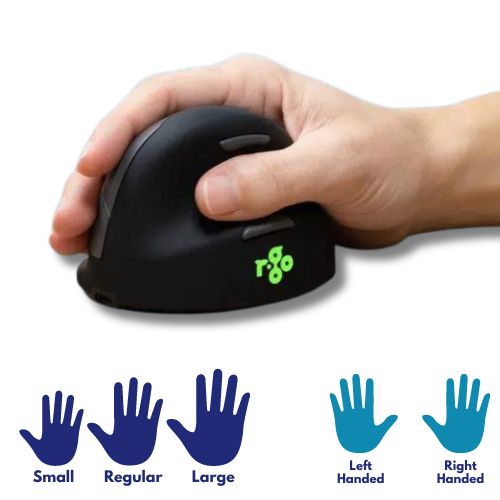
Vertical mice with break reminders
The KOS MicroBreak mouse flashes a gentle reminder after long stretches of continuous use, and comes in Small, Regular and Large right-handed sizes plus a left-handed Regular. The KOS Twist is an ambidextrous vertical mouse with a break reminder, made from recycled materials, that works wired or over Bluetooth.
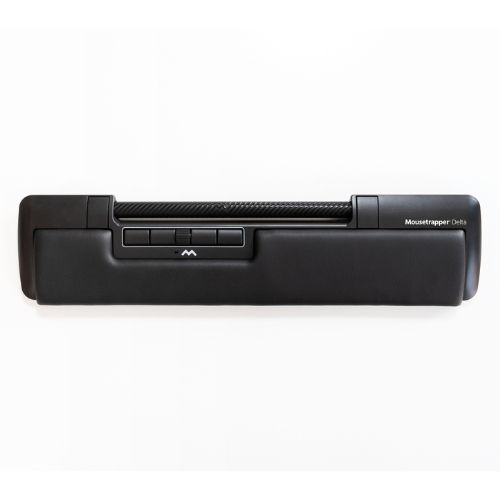
Central pointing devices
These sit directly in front of your keyboard, so you no longer reach out to the side for a mouse. You control the cursor with a roller bar using the fingers of either hand. The Mousetrapper range includes the Delta roller bar mouse, the wireless Prime and the Alpha, which has a built-in keyboard.
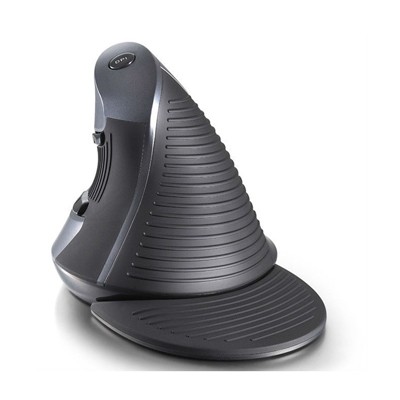
Pen-grip and precision mice
Pen-style mice hold the hand upright like writing, with fine movement coming from the fingers. They suit detailed work and people who find a pen grip more natural than holding a conventional mouse.
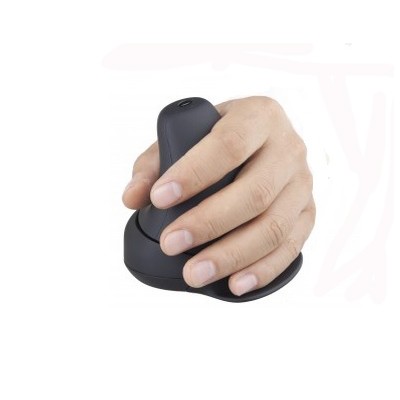
Alternative click designs
If repetitive finger clicking is the problem, the Wireless Rockstick keeps your hand in a handshake position and lets you click by rocking your hand left or right instead of pressing buttons. It can be used with either hand.
Popular mice in our range
KOS MicroBreak
Wireless vertical mouse in three sizes, with a built-in break reminder.
View mouse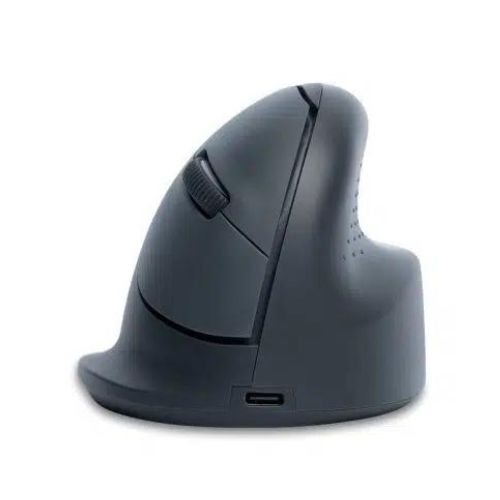
KOS Vertical Mouse
Bluetooth, rechargeable, with support for the thumb and little finger.
View mouse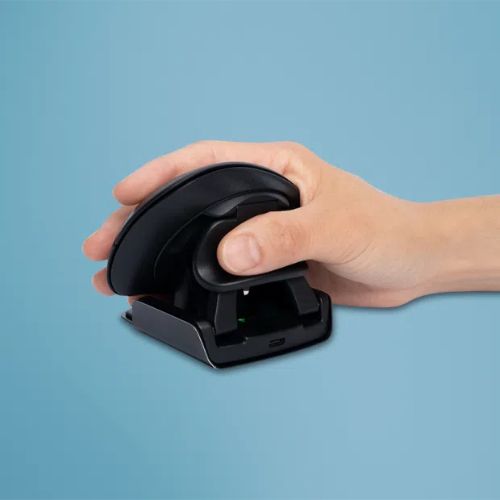
KOS Twist
Vertical mouse for either hand, with a break reminder.
View mouse
Mousetrapper Delta
Roller bar mouse that sits in front of your keyboard.
View device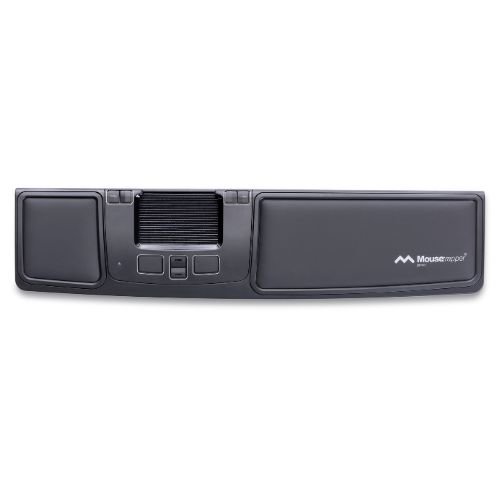
Mousetrapper Prime
Wireless central pointing device for a clutter-free desk.
View device
Wireless Rockstick
Click by rocking your hand rather than pressing buttons.
View mouseConnectivity, build and battery
Connection
- USB receiver (2.4 GHz) connects the moment it's plugged in and suits desktops and docking stations.
- Bluetooth saves a USB port and suits laptops, tablets and hybrid workers moving between devices.
- Wired never needs charging and suits environments where wireless devices aren't permitted.
Build quality
Look for a stable base that doesn't rock, smooth glide pads and buttons that feel consistent after long use. Weight matters too: research suggests a lighter mouse may reduce forearm muscle activity during fast movements.3 Rechargeable models should last at least a full working week between charges.
Shared and hot desks
Because fit is so personal, a mouse is best treated as personal equipment. For hot-desking staff, a compact wireless mouse that travels with the person usually works better than a shared one left at each desk.
What Irish DSE regulations require
If you're buying for employees, input devices are part of your legal duties. Chapter 5 of Part 2 of the Safety, Health and Welfare at Work (General Application) Regulations 2007 covers display screen equipment, including workstation assessments by a competent person, and the workstation includes the keyboard or input device.6 The Regulations don't name a type of mouse, but the minimum requirements shape how it's set up:7
DSE requirements that affect your mouse setup
- The work surface allows a flexible arrangement of the screen, keyboard, documents and related equipment such as the mouse
- The keyboard is separate from the screen so the worker can find a comfortable position
- There is space in front of the keyboard to support the hands and arms
- The workstation, including the input device, is assessed by a competent person
These are minimums. An employee can have a compliant workstation and still develop discomfort from their mouse, which is why a DSE assessment should come before buying for staff with specific needs. Where someone has an existing condition, a detailed medical DSE assessment gives tailored recommendations.
How to set up your new mouse
Even the best mouse won't help if it sits in the wrong place. Work through these steps in order.
-
Set up your chair first Adjust your chair so your elbows are roughly level with the desk and your shoulders are relaxed. See our chair buying guide for the full setup.
-
Bring the mouse close Place it right beside the keyboard, within easy reach, so your elbow stays close to your body. A compact keyboard without a number pad lets the mouse sit closer.5
-
Keep it level with the keyboard The mouse should sit at the same height as the keyboard, not on a raised stand or a lower tray.
-
Relax your grip Hold the mouse lightly and move it from the elbow and shoulder rather than flicking it from the wrist.
-
Set speed and buttons Adjust the tracking speed so small movements cover the screen, and assign repetitive tasks to programmable buttons.
-
Let go and take micro breaks Take your hand off the mouse while reading or thinking, and take the break reminders seriously if your mouse has them.
See our step-by-step guide: Set up your office workstation in 6 minutes.
Common mouse buying mistakes
A mouse that doesn't match your hand length leads to squeezing or stretching, whatever its shape.
Reaching forward or sideways beyond easy reach strains the shoulder and neck.5 Bring it in close.
A tense grip loads the hand and forearm. The best mouse is one you can hold lightly.
Pivoting on a fixed wrist bends it side to side. Use palm supports during pauses, not as a pivot.
A new grip feels strange at first, and precision improves with practice.1 Allow a week or two.
If your chair, desk height or keyboard width is wrong, a new mouse can only do so much.
Get the right mouse first time
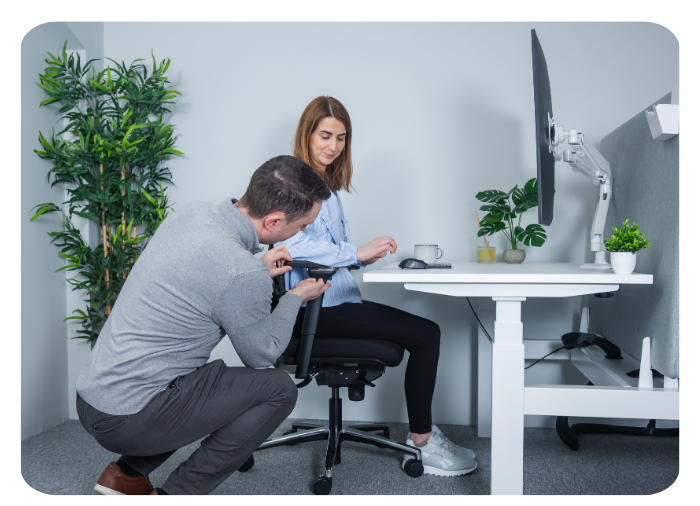
Reading about grips only goes so far. A KOS consultant can look at how you work, check your hand size and reach, and recommend a mouse or pointing device alongside the rest of your setup.
Frequently asked questions
What is the best mouse for wrist pain?
A correctly sized vertical mouse is often the best starting point, because it keeps the forearm less rotated than a flat mouse. If gripping any mouse is painful, a central pointing device may suit you better. Persistent pain should be checked by a healthcare professional, and a DSE assessment can identify workstation causes.
Are vertical mice really better?
Lab studies show vertical mice reduce forearm rotation and wrist extensor muscle activity compared with a standard mouse. They take some getting used to, and they work best alongside a good workstation setup and regular breaks.
How do I know what size mouse I need?
Measure your hand from the crease of your wrist to the tip of your middle finger. As a guide, under 165 mm suits a small mouse, 165 to 185 mm a regular mouse and over 185 mm a large mouse.
What is a central pointing device?
A central pointing device sits in front of your keyboard and lets you move the cursor with a roller bar using the fingers of either hand. Because there's no reaching out to the side, it can suit people with shoulder or neck discomfort and heavy mouse users.
Do Irish employers have to provide ergonomic mice?
The Safety, Health and Welfare at Work (General Application) Regulations 2007 don't require a specific type of mouse. The input device is part of the display screen workstation, which must be assessed and meet minimum requirements, and a DSE assessment may recommend an ergonomic mouse for an individual employee.
Can I get advice before I buy?
Yes. Book a free appointment at our Dublin or Tipperary showroom to speak with a consultant, add a 1-on-1 ergonomic consultation, or book a remote video consultation if you can't travel.
Sources
- Biomechanics and performance when using a standard and a vertical computer mouse, Ergonomics (2013). pubmed.ncbi.nlm.nih.gov/23777482
- Benefits of alternative computer mouse designs: A systematic review of controlled trials, Cogent Engineering (2018). tandfonline.com
- A Design Contribution to Ergonomic PC Mice Development, International Journal of Environmental Research and Public Health (2022). pmc.ncbi.nlm.nih.gov/articles/PMC9265546
- Russell, Maître and Watson, Work-related Musculoskeletal Disorders and Stress, Anxiety and Depression in Ireland, ESRI/HSA (2016). esri.ie/pubs/RS53.pdf
- Canadian Centre for Occupational Health and Safety, Office Ergonomics: Computer Mouse, Location Beside Keyboard. ccohs.gc.ca
- S.I. No. 299/2007, Safety, Health and Welfare at Work (General Application) Regulations 2007. irishstatutebook.ie/eli/2007/si/299
- Minimum requirements for display screen equipment, Schedule 4, S.I. No. 299/2007. irishstatutebook.ie

 and then Add to Home Screen.