How to choose the right ergonomic keyboard
A complete buying guide from KOS Ergonomics. Learn which features matter, when a split or compact keyboard makes sense, how to set it up, and what Irish DSE regulations require, so you can type in comfort without wrist, forearm or shoulder strain.
- 50% of work-related illness in Ireland was musculoskeletal (2002–2013)3
- 12° → 5° average sideways wrist bend with a correctly set-up split keyboard versus a conventional one1
- 0° to −4° keyboard slope that gave the least wrist extension in a split keyboard study2
- 3 KOS keyboards and keypads with built-in break reminders
Most people type on the keyboard that came with their computer, and never think about it until their wrists start to ache. A standard keyboard pulls the hands close together, turns the forearms palm-down and, with its feet up, bends the wrists back. A well-chosen keyboard straightens all of that out.
The right keyboard depends on three things: how much you type, how much you use the mouse and number pad, and where you feel discomfort. Use the table below as a starting point, then read on for the detail.
Ergonomic keyboards at a glance
| How you work | Keyboard type | Look for | Examples from KOS |
|---|---|---|---|
| Mixed typing and mouse work | Compact keyboard | No number pad, low profile, flat position | KOS Compact Keyboard, KOS Super Slim KB39 |
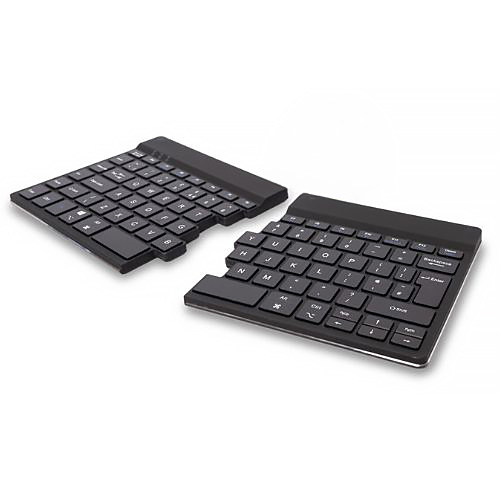
| Full days of touch typing | Split keyboard | Angled halves, low or negative slope, palm support | KOS Split Keyboard, Kinesis Freestyle2 |
| Wrist or forearm discomfort | Adjustable split keyboard | Adjustable split angle and width, tenting option | GoldTouch Elite, Freestyle2 VIP3 kit |
| Heavy numeric data entry | Compact keyboard plus separate number pad | A number pad you can place on either side or move away | KOS NumPad Break, Penclic Number Pad N3 |
| Labs, cleanrooms and healthcare | Wipe-clean or sealed keyboard | Waterproof or cleanroom-rated build that's easy to disinfect | KOS Waterproof KO75, Cleanroom KYB500 |
| Low vision | High-contrast keyboard | Large, clearly contrasted key legends | KOS High Contrast Keyboard |
Start with how you work
An ergonomic keyboard is about three wrist positions: bending sideways, rotating palm-down and bending back. Different designs tackle different ones, and a keyboard also changes where your mouse ends up. So before comparing models, be clear about your typing day.
Questions to ask yourself
- Do you touch type? Split keyboards suit touch typists best. If you look at the keys and use a few fingers, a compact flat keyboard is often the better choice.
- How often do you use the number pad? If rarely, dropping it brings your mouse closer. If often, a separate number pad gives you both.
- How much do you use the mouse? Heavy mouse users benefit most from a narrow keyboard that keeps the mouse within easy reach.
- Where do you feel discomfort? Wrist and forearm discomfort points toward split and tented designs. Shoulder and neck discomfort often points toward keyboard width and height.
- Where do you work? Laptops, hot desks and shared or clinical environments influence whether you need a portable, wireless or wipe-clean keyboard.
Your keyboard and mouse work as a pair. Changing to a narrower keyboard can do as much for your shoulder as changing the mouse itself, so it's worth choosing them together.
The 8 features that matter
An ergonomic keyboard is only as good as its fit and setup. These are the features our consultants check first, and the ones to look for on any product page.
- 1Split and opening angle
- 2Tenting
- 3Slope
- 4Width and number pad
- 5Key feel
- 6Palm support
- 7Low profile
- 8Connectivity and extras
1Split and opening angle
A one-piece keyboard pulls the hands together, so the wrists bend outward. Split halves angled apart let the wrists stay straight. In a study of 90 office workers, correctly set-up split keyboards cut average sideways wrist bend from 12 degrees to within 5 degrees of neutral.1
Check: your wrists sit straight, in line with your forearms.
2Tenting
Raising the inner edges of a split keyboard tilts the hands slightly toward a handshake position, easing the palm-down rotation of the forearms. Start with a gentle angle and increase only if it feels better.
Check: the tilt relaxes your forearms without your hands sliding outward.
3Slope
Flipping out the keyboard feet raises the back edge and bends the wrists back. In a split keyboard study, slopes from flat to slightly away from the user (0 to −4 degrees) produced the least wrist extension.2
Check: the keyboard sits flat or tilts slightly away, and your wrists aren't bent upward.
4Width and number pad
A full-size keyboard with a number pad pushes the mouse further out to the side, forcing a longer reach.4 A compact keyboard, with a separate number pad if you need one, keeps everything closer.
Check: your mouse sits within easy reach with your elbow close to your body.
5Key feel
Keys should register with a light touch and give clear feedback, so you don't need to hammer them. Consistent key travel helps you type evenly without tensing your fingers.
Check: keys register without you pressing hard or striking the bottom forcefully.
6Palm support
An integrated or detachable palm support gives the heels of your hands somewhere to rest during pauses. It should support the palm, not the soft underside of the wrist.
Check: you rest on it between bursts of typing, not while your fingers are moving.
7Low profile
A thick keyboard raises your hands and bends your wrists back. In research on split keyboards, a lower keyboard height led to less shoulder elevation and less sideways wrist bend.2
Check: the home row sits at or just below your elbow height.
8Connectivity and extras
Wireless keyboards are easy to position and move out of the way. Bluetooth models that pair with several devices suit hybrid workers, and built-in break reminders prompt you to pause during long typing sessions.
Check: the connection suits your computer and the extras support how you actually work.
Fitting your body and desk
A keyboard needs to suit your frame, the way you use numbers, and the space on your desk. If you are broader or narrower than average, or you work from a laptop, check these points carefully before you buy.
| If you | Common problem with standard keyboards | What to look for | Explore |
|---|---|---|---|
| Have broad shoulders | Hands pulled together, wrists bent outward | Fully separable halves you can set wider apart | Kinesis Freestyle2 |
| Have a smaller frame | A wide keyboard forces a long reach to the mouse | A compact keyboard without a number pad | Penclic Mini C3 |
| Enter lots of numbers | Built-in number pad pushes the mouse out of reach | A separate number pad, placed on the left or moved aside when not needed | KOS NumPad Break |
| Work from a laptop | Built-in keyboard ties your hands to the screen, so you hunch | A separate wireless keyboard, with the laptop raised to eye level | KOS Solo X |
| Have low vision | Small, low-contrast key legends are hard to read | Large keys with high-contrast legends | KOS High Contrast Keyboard |
A new keyboard changes where your mouse sits. If you're also reviewing your mouse, see our guide to choosing an ergonomic mouse so the two work together.
Keyboard layouts explained
Ergonomic keyboards change the width, the angle of the keys or the tilt of the hands. Each suits different users, so it's worth understanding the options.
| Layout | How it works | Best for |
|---|---|---|
| Standard full-size | One piece with a built-in number pad on the right | Numeric work where desk space and mouse reach aren't an issue |
| Compact | No number pad, so the keyboard is narrower and the mouse sits closer | Mixed keyboard and mouse users, smaller frames and small desks |
| Fixed split | Key groups angled apart within a single body, often curved | Touch typists who want straighter wrists without adjusting anything |
| Adjustable split | Halves hinge or separate so you set the angle and width | Broad shoulders, a precise fit and existing wrist discomfort |
| Tented | Inner edges raised so the hands tilt toward a handshake position | Forearm discomfort, usually combined with an adjustable split |
For most touch typists working full days, a split keyboard set up flat is a strong default. If you use the mouse heavily or rarely touch the number pad, a compact keyboard may help more. Split layouts take a little getting used to, so allow a week or two before judging.
Specialist keyboards
Beyond standard keyboards, KOS offers a range of specialist options. If one of these describes your situation, start here.
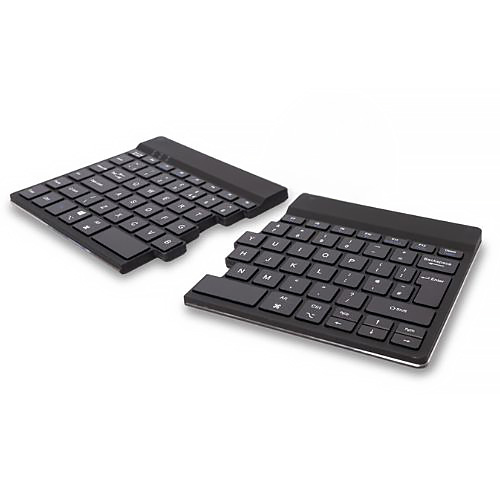
Keyboards with break reminders
The KOS range includes a wireless split keyboard, a Bluetooth compact keyboard and a wireless number pad, each with a built-in break reminder to prompt regular pauses during long typing sessions.
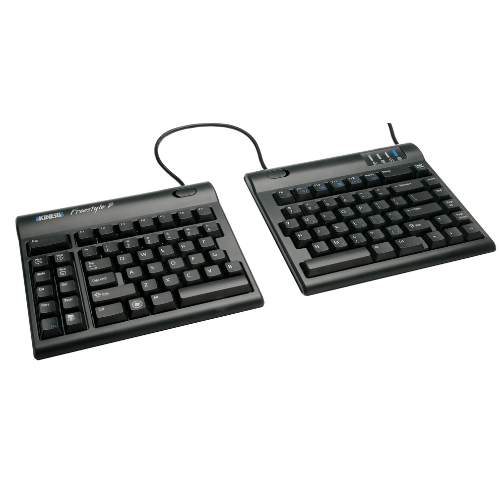
Adjustable split keyboards
For the most precise fit, adjustable split keyboards let you set the angle and width between the halves. The Kinesis Freestyle2 can be paired with the VIP3 accessory kit, which adds tenting and integrated palm supports. The GoldTouch Elite is another adjustable split option.
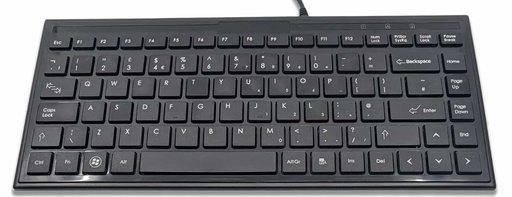
Compact and slim keyboards
Narrow, low-profile keyboards keep the mouse close and the hands low. Options include the KOS Super Slim KB39, the Penclic Mini C3, and the rechargeable wireless KOS Solo range for laptop users and hybrid workers.
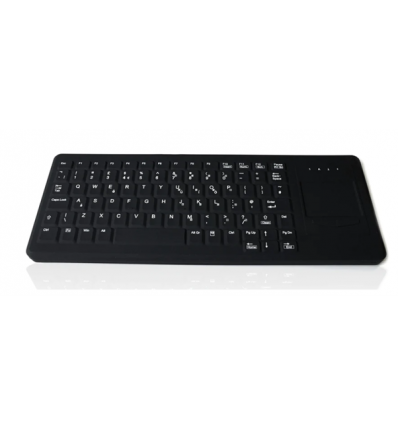
Hygienic and accessible keyboards
Labs, cleanrooms and clinical settings need keyboards that can be cleaned and disinfected easily, such as the flexible waterproof KO75 or the KYB500 cleanroom keyboard with built-in touchpad. For users with low vision, the KOS High Contrast Keyboard has extra-large keys.
Popular keyboards in our range
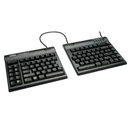
KOS Split Keyboard
Wireless split keyboard with a built-in break reminder.
View keyboard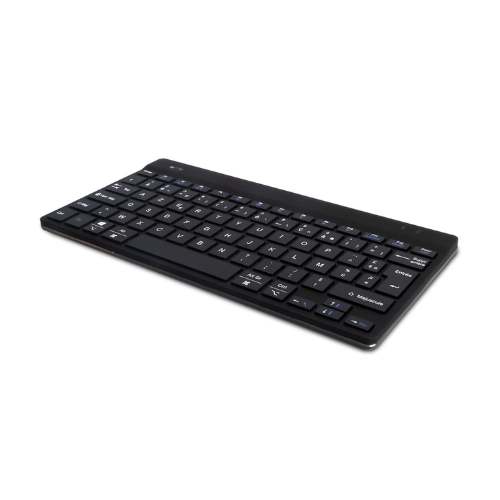
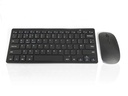
KOS Compact Keyboard
Bluetooth compact keyboard with a built-in break reminder.
View keyboard
Kinesis Freestyle2
Separable halves you can set to your shoulder width.
View keyboard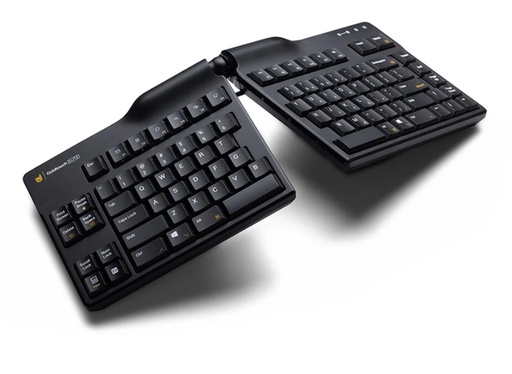
GoldTouch Elite
Adjustable split keyboard for a tailored typing position.
View keyboard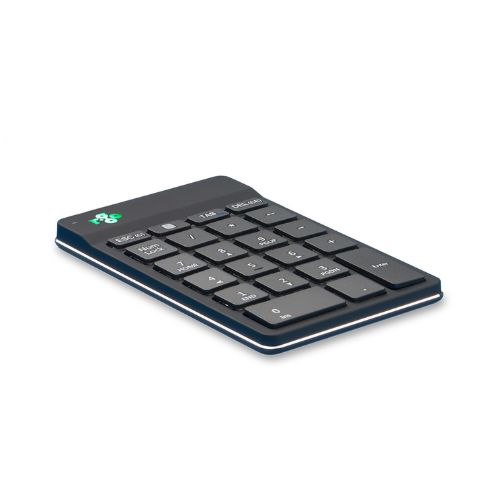
KOS NumPad Break
Wireless number pad with a built-in break reminder.
View keypad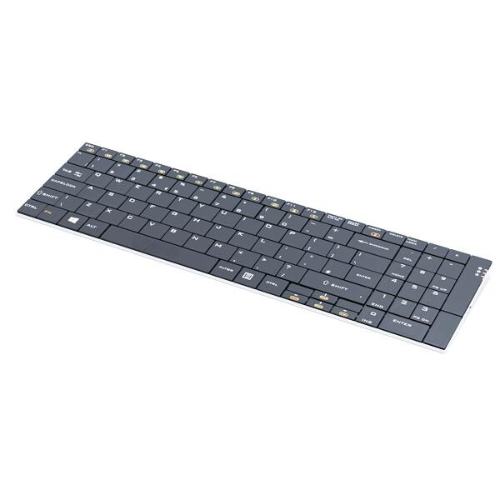
KOS Solo #Pad
Rechargeable wireless keyboard for home and hybrid working.
View keyboardConnectivity, build and key feel
Connection
- USB receiver (2.4 GHz) connects the moment it's plugged in and suits desktops and docking stations.
- Bluetooth saves a USB port and suits laptops, tablets and hybrid workers moving between devices.
- Wired USB never needs charging and suits cleanrooms and environments where wireless devices aren't permitted.
Key feel and build
Low-profile keys keep the hands low and are quiet in shared offices, while keys with more travel give firmer feedback. Whichever you prefer, look for a stable base that doesn't flex or slide, key legends that won't wear off, and a matt surface that doesn't reflect overhead light.
Hygiene and shared desks
Keyboards collect dirt quickly. For shared desks, clinics and labs, choose a wipe-clean or waterproof design, and for hot-desking staff, consider giving each person their own compact wireless keyboard.
What Irish DSE regulations require
If you're buying for employees, the keyboard is part of your legal duties. Chapter 5 of Part 2 of the Safety, Health and Welfare at Work (General Application) Regulations 2007 covers display screen equipment, including workstation assessments by a competent person.5 Unlike mice, keyboards have their own minimum requirements:6
Minimum DSE keyboard requirements
- The keyboard is tiltable and separate from the screen, so the worker can find a comfortable position that avoids tiring the arms or hands
- There is enough space in front of the keyboard to support the hands and arms
- The keyboard has a matt surface to avoid reflective glare
- The layout and key characteristics make the keyboard easy to use
- The symbols on the keys are clearly contrasted and legible from the working position
These are minimums. A keyboard can meet them and still be wrong for a particular employee, which is why a DSE assessment should come before buying for staff with specific needs. Where someone has an existing condition, a detailed medical DSE assessment gives tailored recommendations.
How to set up your new keyboard
Even the best keyboard won't help if it sits in the wrong place. Work through these steps in order.
-
Set up your chair first Adjust your chair so your elbows are roughly level with the desk and your shoulders are relaxed. See our chair buying guide for the full setup.
-
Centre the letter keys Position the keyboard so the letter keys, not the whole keyboard, are centred in front of you. On a split keyboard, centre the gap between the halves.
-
Keep it low and flat Fold the feet away so the keyboard sits flat or slopes slightly away, with the home row at or just below elbow height.2
-
Set the split and tent gradually Start with a small angle between the halves and little or no tenting. Increase gradually over a few days until your wrists sit straight.
-
Bring the mouse and number pad close Place the mouse right beside the keyboard, and put a separate number pad where it's easy to reach, or move it aside when not in use.4
-
Type lightly and take breaks Let your hands float while you type, rest your palms only in pauses, and act on your break reminders.
See our step-by-step guide: Set up your office workstation in 6 minutes.
Common keyboard buying mistakes
Raising the back edge bends the wrists back. A flat or slightly negative slope is usually better.2
With a number pad, this leaves the letter keys off to one side, so you twist to type.
Anchoring the wrists on the desk edge or palm rest bends them as your fingers reach. Rest only in pauses.
Big angles on day one can feel awkward. Start small and increase as you adjust.
It pushes the mouse further out and makes you reach all day.4
A built-in keyboard ties your hands to the screen height. Add a separate keyboard and raise the screen.
Get the right keyboard first time
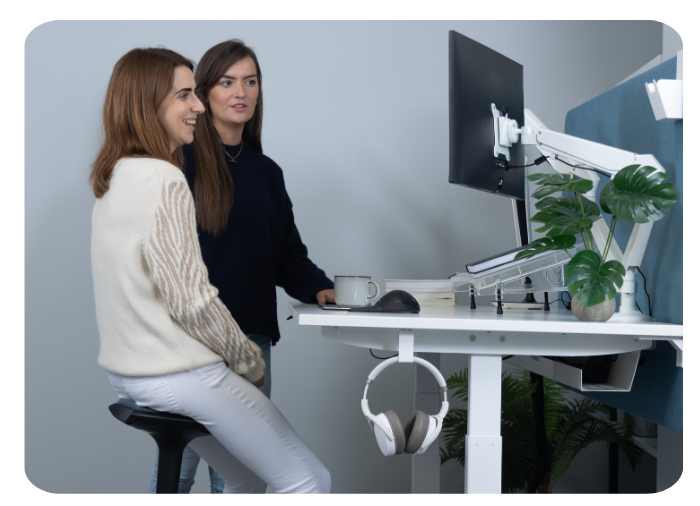
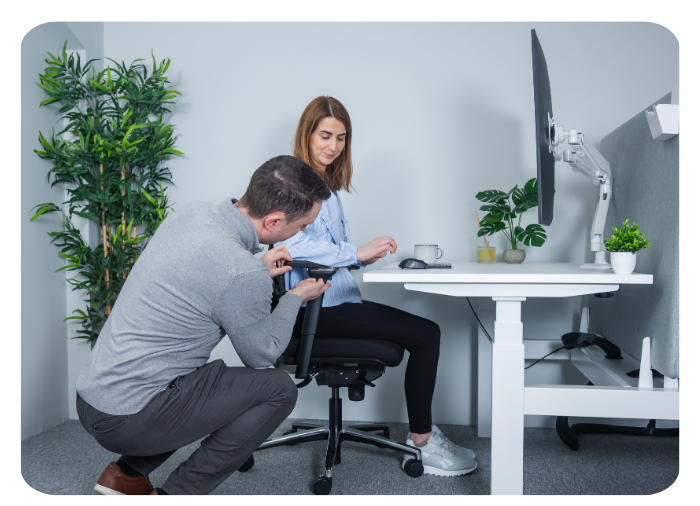
Reading about split angles only goes so far. A KOS consultant can look at how you type, check your reach and posture, and recommend a keyboard and mouse that work together with the rest of your setup.
Frequently asked questions
What is the best keyboard for wrist pain?
For touch typists, a split keyboard set up flat or sloping slightly away is often the best starting point, because it keeps the wrists straighter. If you use the mouse heavily, a compact keyboard that brings the mouse closer can also help. Persistent pain should be checked by a healthcare professional, and a DSE assessment can identify workstation causes.
Are split keyboards worth it?
Research shows that correctly set-up split keyboards reduce sideways wrist bend compared with a conventional keyboard, bringing the wrists much closer to neutral. They take a short time to get used to, so allow a week or two before judging.
Should I use the feet on my keyboard?
Usually not. Raising the back of the keyboard bends the wrists back. A flat keyboard, or one sloping slightly away from you, keeps the wrists in a more neutral position.
Do I need a number pad?
Only if you enter numbers often. A built-in number pad pushes the mouse further away, so many people are better served by a compact keyboard with a separate number pad they can position or move aside.
Do Irish employers have to provide ergonomic keyboards?
The Safety, Health and Welfare at Work (General Application) Regulations 2007 don't require a specific type of ergonomic keyboard. They do require keyboards to be tiltable and separate from the screen, with space in front for the hands and arms, a matt surface and legible keys. A DSE assessment may recommend an ergonomic keyboard for an individual employee.
Can I get advice before I buy?
Yes. Book a free appointment at our Dublin or Tipperary showroom to speak with a consultant, add a 1-on-1 ergonomic consultation, or book a remote video consultation if you can't travel.
Sources
- Marklin et al., Wrist and forearm posture from typing on split and vertically inclined computer keyboards, Human Factors (1999). pubmed.ncbi.nlm.nih.gov/10774127
- Rempel et al., The effects of split keyboard geometry on upper body postures, Ergonomics (2009). pubmed.ncbi.nlm.nih.gov/19308823
- Russell, Maître and Watson, Work-related Musculoskeletal Disorders and Stress, Anxiety and Depression in Ireland, ESRI/HSA (2016). esri.ie/pubs/RS53.pdf
- Canadian Centre for Occupational Health and Safety, Office Ergonomics: Computer Mouse, Location Beside Keyboard. ccohs.gc.ca
- S.I. No. 299/2007, Safety, Health and Welfare at Work (General Application) Regulations 2007. irishstatutebook.ie/eli/2007/si/299
- Minimum requirements for display screen equipment (keyboard), Schedule 4, S.I. No. 299/2007. irishstatutebook.ie

 and then Add to Home Screen.