A well-designed chair that sits three inches too high will still leave you with dead legs by lunchtime. Here is the exact order to work in when setting up your desk, and why the sequence matters more than most people expect.
Most people set up a desk from the outside in. They put the screen where there is room for it, slide the keyboard in front of it, then pull the chair up to whatever gap is left. The body ends up accommodating the furniture.
Ergonomic assessment works the other way around. You establish a supported, neutral posture first, then bring every surface and screen to meet it. That single change in sequence resolves a large share of the discomfort we see in workplace assessments, and it costs nothing. Work through these five steps in order. It takes about five minutes, and you only need to do it once properly.
1. Set the chair before you touch anything else
Why this matters: The chair is the only thing that fixes where your body sits in space. Desk height, screen height, and keyboard position are all measured from your elbows and your eyes, so those measurements are meaningless until the chair is set correctly.
Seat height
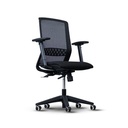
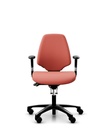
Stand in front of the chair and set the seat to just below your kneecap. Sit down. Your feet should rest flat on the floor with your thighs roughly horizontal, or with your hips very slightly higher than your knees. The old "90 degrees at every joint" rule has fallen out of favor. A slightly open hip angle (100 to 110 degrees) reduces pressure on the lower back. If your feet no longer reach the floor after raising the seat, you need a footrest, not a lower chair.
Seat depth
Slide the seat pan so you can fit two or three fingers between the front edge of the seat and the back of your knee. Too deep and you will perch forward, losing all back support. Too shallow and your thighs carry no weight.
Backrest and lumbar support
The lumbar curve should sit in the small of your back (roughly belt height). Adjust it until you feel light, even contact when you sit back. Then, unlock the tilt. A recline of around 100 to 110 degrees transfers weight off your lower back and into the backrest. A chair locked bolt upright is doing considerably less work than it could.
Armrests
Let your shoulders drop and hang your arms by your sides. Bring the armrests up until they just meet your forearms. They support the weight of your arms; they do not lift your shoulders. Armrests set too high are a primary cause of neck tension. If yours prevent you from pulling the chair close to the desk, lower them, move them inward, or remove them entirely.
2. Bring the desk to your elbows
Why this matters: Desk height has one correct answer: the height of your elbows when your shoulders are relaxed and your chair is set correctly.
With your arms hanging loosely and elbows bent to a comfortable angle, the desk surface should be level with your forearms so your wrists stay straight when you type.
- If your desk is fixed and too high: Raise the chair until your elbows meet the surface, then support your feet with a footrest. Never leave your feet dangling.
- If your desk is fixed and too low: Raise the desk itself on solid risers. Dropping the chair instead will close your hip angle and put your knees above your hips.
- If you have a sit-stand desk: Apply exactly the same elbow rule standing, and save the two heights as presets. Alternate roughly every 30 to 45 minutes.
3. Position the screen to your eyes
Why this matters: Your head weighs about five kilos. Every centimetre it drifts forward or tips back multiplies the load your neck carries, hour after hour.
- Distance: Sit back fully and stretch out one arm. Your fingertips should roughly brush the screen (50 to 70 centimetres). Larger screens need to go further back.
- Height: The top of the screen should sit at or just below eye level, keeping your chin level. Most monitors need a riser or a monitor arm to achieve this.
- Varifocals/Bifocals: You read through the lower part of the lens, so a standard screen height forces you to tip your head back. Drop the screen noticeably below eye level and tilt the top slightly away from you.
- Alignment: The screen, keyboard, and your body should share one centre line to prevent permanent neck rotation. If using two screens equally, place the join on your centre line.
- Laptops: A laptop cannot be set up correctly on its own. Put it on a riser so the screen reaches eye level, then use a separate keyboard and mouse.
4. Bring the keyboard and mouse in close
Why this matters: Reach is the hidden cost in most setups. A mouse sitting ten centimetres too far out means thousands of small shoulder movements a day, overloading the same tissue.
- Keyboard position: Leave 10 to 15 centimetres between the keyboard and the front edge of the desk so your forearms can rest.
- Fold the legs down: Flip-out feet on a keyboard tilt your wrists into extension, a leading cause of discomfort. Keep it flat.
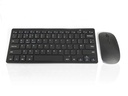
- Mouse placement: Keep it immediately adjacent to the keyboard so your elbow stays by your side. (Consider a compact keyboard if a number pad pushes the mouse too far out).
- Move from the elbow: Steer the mouse with your forearm rather than flicking from the wrist, and loosen your grip.
5. Fix the environment, then plan to move
Why this matters: A correct posture held rigidly for eight hours is still a static posture. Movement is not the finishing touch to a good setup; it is part of it.
Light and glare: Set your screen at right angles to a window. Facing a window forces your eyes to fight contrast; backing onto one throws reflections. Match screen brightness to the room.
Reach zones: Keep items you use constantly (phone, notepad) inside a comfortable forearm sweep. Use a document holder if you type from paper, and a headset if you take frequent calls.
Build in movement: Change posture every 30 to 60 minutes. Use the 20-20-20 rule for your eyes (every 20 minutes, look 20 feet away for 20 seconds). Read our 10 tips for staying mobile at work for more.
If something still aches, start here
Discomfort at a desk is usually traceable to a specific adjustment. This table covers the most common causes:
| What you feel | Most likely cause | What to change |
|---|---|---|
| Aching upper shoulders and neck | Armrests or desk set too high, shoulders shrugged all day | Lower armrests to relaxed elbow height, then check desk height against your elbows |
| Sore neck, chin tipping upward | Screen too low, or varifocal lenses with a standard screen height | Raise the screen to eye level, or drop it well below eye level if you wear varifocals |
| Wrist ache, tingling in the fingers | Keyboard propped on its rear legs, or resting on a hard desk edge | Fold the keyboard legs flat and move it back from the edge |
| Lower back ache by mid-afternoon | Perching forward off the backrest, lumbar support misplaced, or tilt locked upright | Reset seat depth, move lumbar support to belt height, unlock the tilt |
| Numb thighs, pressure behind the knees | Seat too high or too deep | Lower the seat, shorten the seat pan, add a footrest if your feet lift |
| Aching shoulder on your mouse side | Reaching out and forward for the mouse, often past a number pad | Bring the mouse in beside the keyboard, or switch to a compact keyboard |
| Tired eyes, end-of-day headaches | Screen too close or too bright, or glare from a window | Move the screen back to arm's length, match brightness to the room, turn the desk side-on to the window |
Your Setup Checklist
Tick each item as you adjust it. Work top to bottom.
Chair
Desk
Screen
Keyboard and mouse
Environment and habits
One last thing worth knowing
Everything above is the self-assessment version of what a formal display screen equipment (DSE) assessment covers. If you work at a screen for an employer in Ireland, your employer has duties under the Safety, Health and Welfare at Work (General Application) Regulations 2007 to assess your workstation and act on what the assessment finds. This is not something you have to sort out alone.
Ensure Total Workplace Compliance
If you are the person responsible for workstation safety in your organization, secure the exact level of training you need to manage your ergonomic risks confidently and compliantly.
A well-designed chair that sits three inches too high will still leave you with dead legs by lunchtime. Here is the exact order to work in when setting up your desk, and why the sequence matters more than most people expect.
Most people set up a desk from the outside in. They put the screen where there is room for it, slide the keyboard in front of it, then pull the chair up to whatever gap is left. The body ends up accommodating the furniture.
Ergonomic assessment works the other way around. You establish a supported, neutral posture first, then bring every surface and screen to meet it. That single change in sequence resolves a large share of the discomfort we see in workplace assessments, and it costs nothing. Work through these five steps in order. It takes about five minutes, and you only need to do it once properly.
1. Set the chair before you touch anything else
Why this matters: The chair is the only thing that fixes where your body sits in space. Desk height, screen height, and keyboard position are all measured from your elbows and your eyes, so those measurements are meaningless until the chair is set correctly.
Seat height
Stand in front of the chair and set the seat to just below your kneecap. Sit down. Your feet should rest flat on the floor with your thighs roughly horizontal, or with your hips very slightly higher than your knees. The old "90 degrees at every joint" rule has fallen out of favor. A slightly open hip angle (100 to 110 degrees) reduces pressure on the lower back. If your feet no longer reach the floor after raising the seat, you need a footrest, not a lower chair.
Seat depth
Slide the seat pan so you can fit two or three fingers between the front edge of the seat and the back of your knee. Too deep and you will perch forward, losing all back support. Too shallow and your thighs carry no weight.
Backrest and lumbar support
The lumbar curve should sit in the small of your back (roughly belt height). Adjust it until you feel light, even contact when you sit back. Then, unlock the tilt. A recline of around 100 to 110 degrees transfers weight off your lower back and into the backrest. A chair locked bolt upright is doing considerably less work than it could.
Armrests
Let your shoulders drop and hang your arms by your sides. Bring the armrests up until they just meet your forearms. They support the weight of your arms; they do not lift your shoulders. Armrests set too high are a primary cause of neck tension. If yours prevent you from pulling the chair close to the desk, lower them, move them inward, or remove them entirely.
2. Bring the desk to your elbows
Why this matters: Desk height has one correct answer: the height of your elbows when your shoulders are relaxed and your chair is set correctly.
With your arms hanging loosely and elbows bent to a comfortable angle, the desk surface should be level with your forearms so your wrists stay straight when you type.
- If your desk is fixed and too high: Raise the chair until your elbows meet the surface, then support your feet with a footrest. Never leave your feet dangling.
- If your desk is fixed and too low: Raise the desk itself on solid risers. Dropping the chair instead will close your hip angle and put your knees above your hips.
- If you have a sit-stand desk: Apply exactly the same elbow rule standing, and save the two heights as presets. Alternate roughly every 30 to 45 minutes.
3. Position the screen to your eyes
Why this matters: Your head weighs about five kilos. Every centimetre it drifts forward or tips back multiplies the load your neck carries, hour after hour.
- Distance: Sit back fully and stretch out one arm. Your fingertips should roughly brush the screen (50 to 70 centimetres). Larger screens need to go further back.
- Height: The top of the screen should sit at or just below eye level, keeping your chin level. Most monitors need a riser or a monitor arm to achieve this.
- Varifocals/Bifocals: You read through the lower part of the lens, so a standard screen height forces you to tip your head back. Drop the screen noticeably below eye level and tilt the top slightly away from you.
- Alignment: The screen, keyboard, and your body should share one centre line to prevent permanent neck rotation. If using two screens equally, place the join on your centre line.
- Laptops: A laptop cannot be set up correctly on its own. Put it on a riser so the screen reaches eye level, then use a separate keyboard and mouse.
4. Bring the keyboard and mouse in close
Why this matters: Reach is the hidden cost in most setups. A mouse sitting ten centimetres too far out means thousands of small shoulder movements a day, overloading the same tissue.
- Keyboard position: Leave 10 to 15 centimetres between the keyboard and the front edge of the desk so your forearms can rest.
- Fold the legs down: Flip-out feet on a keyboard tilt your wrists into extension, a leading cause of discomfort. Keep it flat.
- Mouse placement: Keep it immediately adjacent to the keyboard so your elbow stays by your side. (Consider a compact keyboard if a number pad pushes the mouse too far out).
- Move from the elbow: Steer the mouse with your forearm rather than flicking from the wrist, and loosen your grip.
5. Fix the environment, then plan to move
Why this matters: A correct posture held rigidly for eight hours is still a static posture. Movement is not the finishing touch to a good setup; it is part of it.
Light and glare: Set your screen at right angles to a window. Facing a window forces your eyes to fight contrast; backing onto one throws reflections. Match screen brightness to the room.
Reach zones: Keep items you use constantly (phone, notepad) inside a comfortable forearm sweep. Use a document holder if you type from paper, and a headset if you take frequent calls.
Build in movement: Change posture every 30 to 60 minutes. Use the 20-20-20 rule for your eyes (every 20 minutes, look 20 feet away for 20 seconds). Read our 10 tips for staying mobile at work for more.
If something still aches, start here
Discomfort at a desk is usually traceable to a specific adjustment. This table covers the most common causes:
| What you feel | Most likely cause | What to change |
|---|---|---|
| Aching upper shoulders and neck | Armrests or desk set too high, shoulders shrugged all day | Lower armrests to relaxed elbow height, then check desk height against your elbows |
| Sore neck, chin tipping upward | Screen too low, or varifocal lenses with a standard screen height | Raise the screen to eye level, or drop it well below eye level if you wear varifocals |
| Wrist ache, tingling in the fingers | Keyboard propped on its rear legs, or resting on a hard desk edge | Fold the keyboard legs flat and move it back from the edge |
| Lower back ache by mid-afternoon | Perching forward off the backrest, lumbar support misplaced, or tilt locked upright | Reset seat depth, move lumbar support to belt height, unlock the tilt |
| Numb thighs, pressure behind the knees | Seat too high or too deep | Lower the seat, shorten the seat pan, add a footrest if your feet lift |
| Aching shoulder on your mouse side | Reaching out and forward for the mouse, often past a number pad | Bring the mouse in beside the keyboard, or switch to a compact keyboard |
| Tired eyes, end-of-day headaches | Screen too close or too bright, or glare from a window | Move the screen back to arm's length, match brightness to the room, turn the desk side-on to the window |
Your Setup Checklist
Tick each item as you adjust it. Work top to bottom.
Chair
Desk
Screen
Keyboard and mouse
Environment and habits
One last thing worth knowing
Everything above is the self-assessment version of what a formal display screen equipment (DSE) assessment covers. If you work at a screen for an employer in Ireland, your employer has duties under the Safety, Health and Welfare at Work (General Application) Regulations 2007 to assess your workstation and act on what the assessment finds. This is not something you have to sort out alone.
Ensure Total Workplace Compliance
If you are the person responsible for workstation safety in your organization, secure the exact level of training you need to manage your ergonomic risks confidently and compliantly.
Start writing here...

 and then Add to Home Screen.